
Sampling and Testing
Overview
Sampling and testing is the core LIMS path:
- Each stream has a sampling schedule
- Complete (or dismiss) the Create Sample task when it appears
- Log the sample
- Perform tests, which attach to the sample through testing workflows
A short code is what ties a sample to its tests. Only one sample can be active per short code (per test type) at a time.
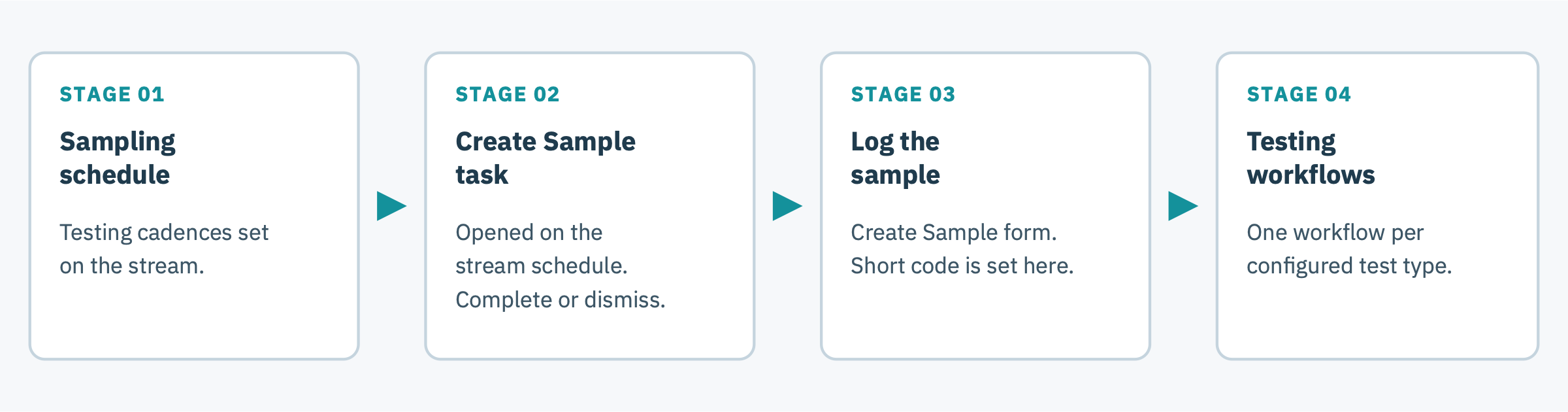
1. Sampling schedule
A stream's sampling schedule is configured on the stream through custom attributes (for example a testing cadence for each test type). On any day that one or more tests are due, a Create Sample task is opened for that stream.
To view or change a stream's schedule, see Sampling schedule in Managing Streams.
2. Complete a Create Sample task
Create Sample tasks are opened automatically from the stream's sampling schedule. They appear in the operator's task list (including the mobile app).
Some streams can be configured to require more than one sample. When that applies, the follow-up task (for example [2/2] ) appears after the first sample is logged.
Upcoming: Users will be able to dismiss a task with a reason.
- Open the Create Sample task.
- Press Start Form.
- Complete and submit the Create Sample form (next section).


Dismiss a sampling task
If a scheduled sample cannot be taken, dismiss the task and choose a reason from the account's list of dismissal reasons (for example Container damaged, No container available, Lab equipment out of service, Holiday, Resource constraints, or Other).
On mobile:
- Open the sampling task from the task list.
- Open the Details tab.
- Tap Status.
- Choose Dismissed.
- Select a dismissal reason and, optionally, add a comment.
- Tap Confirm.
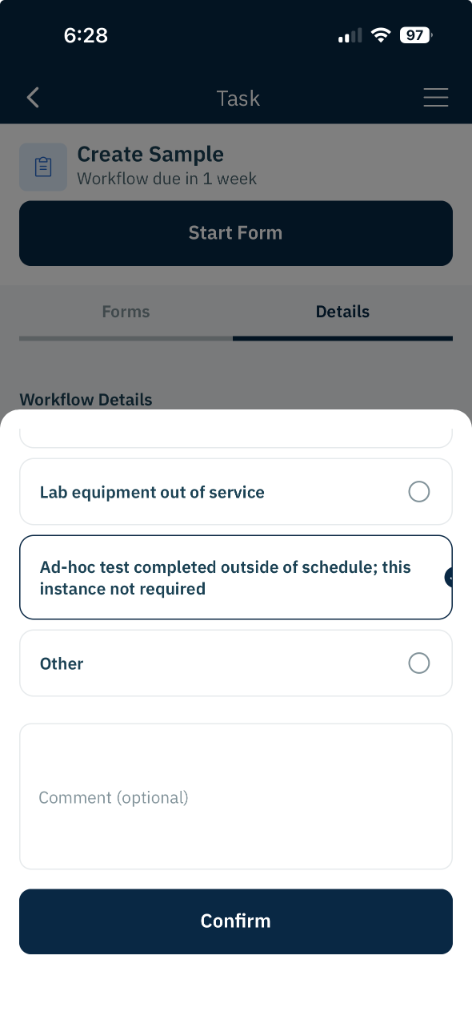
On the web:
- Go to Workflows > Tasks.
- Click the sampling task.
- Click Change Status.
- Choose Dismissed, select a Dismissal Reason, and optionally add a comment.
- Save.
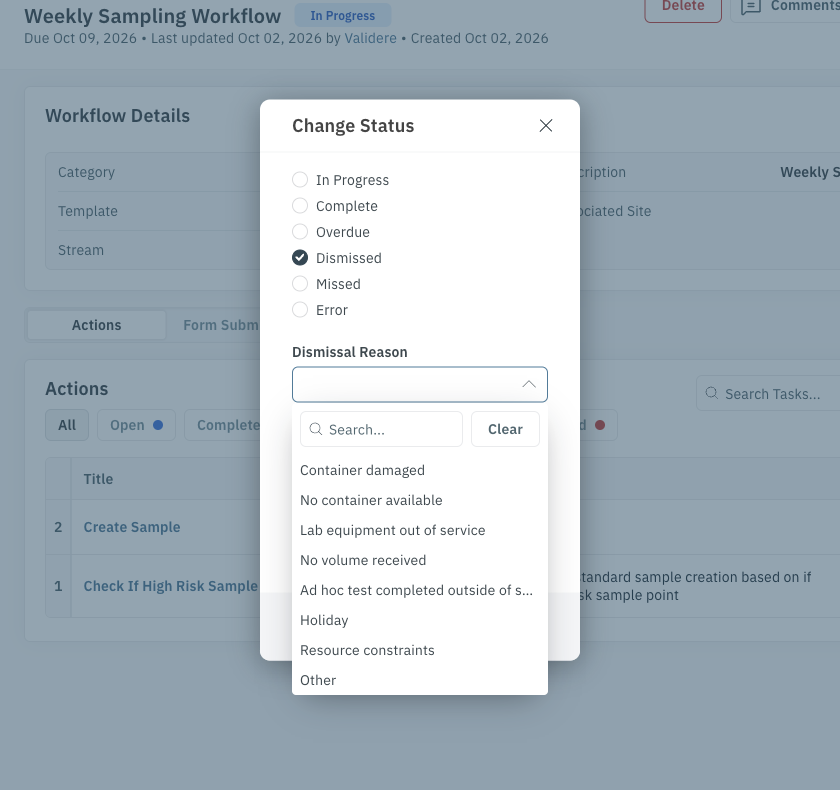
Set up and review dismissal reasons
Dismissal reasons are configured on the workflow template.
- Go to Workflows > Templates and open the sampling workflow template.
- Click Edit.
- Under Dismissal Reasons, type a reason and press Enter to add it. Repeat for each reason.
- Save.
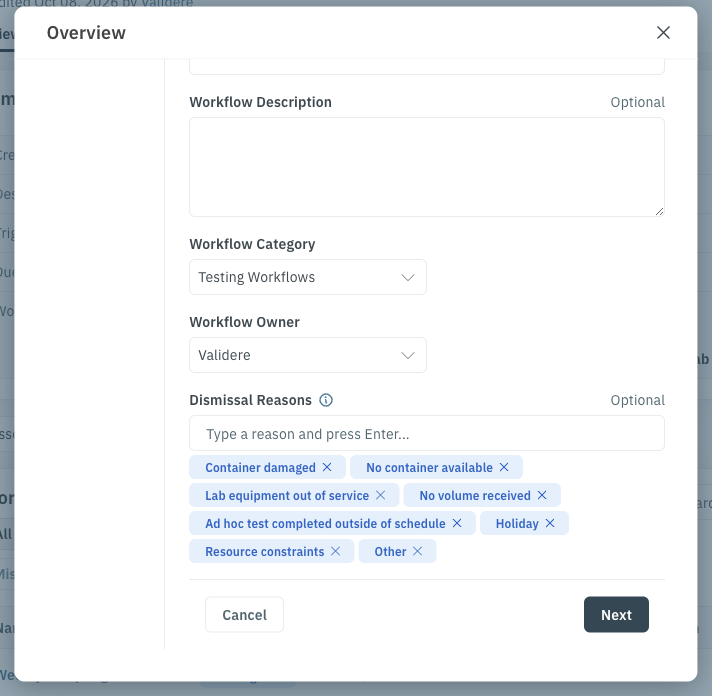
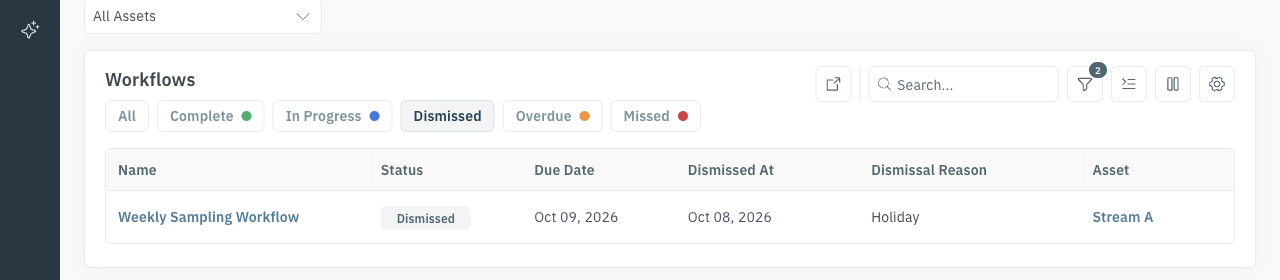
To see why and when workflows were dismissed, go to Workflows > All Workflows or open the workflow template's page. The dismissal reason and dismissal date appear in the workflow list. Click into a workflow for more details.
3. Log the sample
Samples are logged by submitting the Create Sample form on the web or mobile app.
Container type and short code
The short code is set from the container you use:
| Container | Short code comes from |
|---|---|
| Atmospheric (plastic) | The stream's static short code (often based on an external stream identifier configured for your account) |
| Pressurized (cylinder) | The container's static short code (typically the serial number, without letters) |

- Select Pressurized or Atmospheric.
- If pressurized, select the physical container. The short code is taken from that container.
- If the cylinder is not in inventory, choose the generic container and enter a custom short code. Use that same short code when you run tests on this sample.
- Complete any other fields that appear for the site (for example tank or batch ID).
- If the form includes online analyzer readings, they are usually at the bottom. Fill them in when they apply.
- Submit.
The first screenshot demonstrates this in mobile. The same can be done in web instead, as demonstrated in the second screenshot.


Multiple tests can be taken on one sample. Use the sample's short code as the sample ID on each instrument.
Container inventory
To see pressurized containers in Validere:
- Go to Organization > Equipment.
- Filter Equipment Type to Pressure Vessel.
Each container record typically includes site, manufacturer, model, style, last stream sampled, serial number, and static short code.

Create a pressurized container
- On the equipment list, click Quick Create.
- Follow the naming convention used in your account.
- Set Equipment Type to Pressure Vessel.
- Set the Site.
- Set Status to Active.
- Enter manufacturer, model, style, serial number, and static short code (usually the serial number without letters).
- Save.


4. Testing workflows
Logging a sample opens a testing workflow for each test type configured on the account (for example density, sulphur, vapour pressure, water, viscosity). The sample is attached to each of those workflows.
As tests are submitted, each test attaches to the matching workflow. Unused workflows (test types that were not taken) are dismissed after a specified time period. If a test is off spec, a notification can be sent automatically — see Off-Spec Results.
Results appear on any lab results dashboards configured for the account. See Viewing Lab Results.


Short-code automation
When a new sample is logged on a short code that already has open testing workflows, those previous workflows are marked Missed. That keeps only one active workflow per short code per test type, so new tests do not attach to an old sample.
This happens when a pressurized container is reused, or when an atmospheric container is used again on the same stream.
Note: Missed here is a workflow status used by this automation. It does not mean the operator skipped the test in error.
Short-code rules
- Only one sample can be active per short code (per test type) at a time. Logging a new sample on that short code expires the previous sample's workflows (Missed).
- Two atmospheric samples on the same stream at the same time is invalid. Two pressurized samples (different containers, different short codes) on the same stream is valid. Atmospheric plus pressurized on the same stream is valid.
- Idle workflows expire. If no test arrives, the testing workflow expires after a configured idle period (commonly one week; a longer window can be configured for some test types).
- Log the sample before you take tests. A test submitted against a short code with no sample will not attach.
- The sample used for a test is the most recent sample whose date is still before the test date.
- A late test can still attach after the workflow has expired. If the test was delayed (for example a communications delay) it can still associate to the sample that was active at the test time.