
Managing Streams
Overview
Streams (sample points) are managed under Organization > Streams. You can view and edit one stream at a time, change attributes for a specific period, review the change log, and create or update streams in bulk.
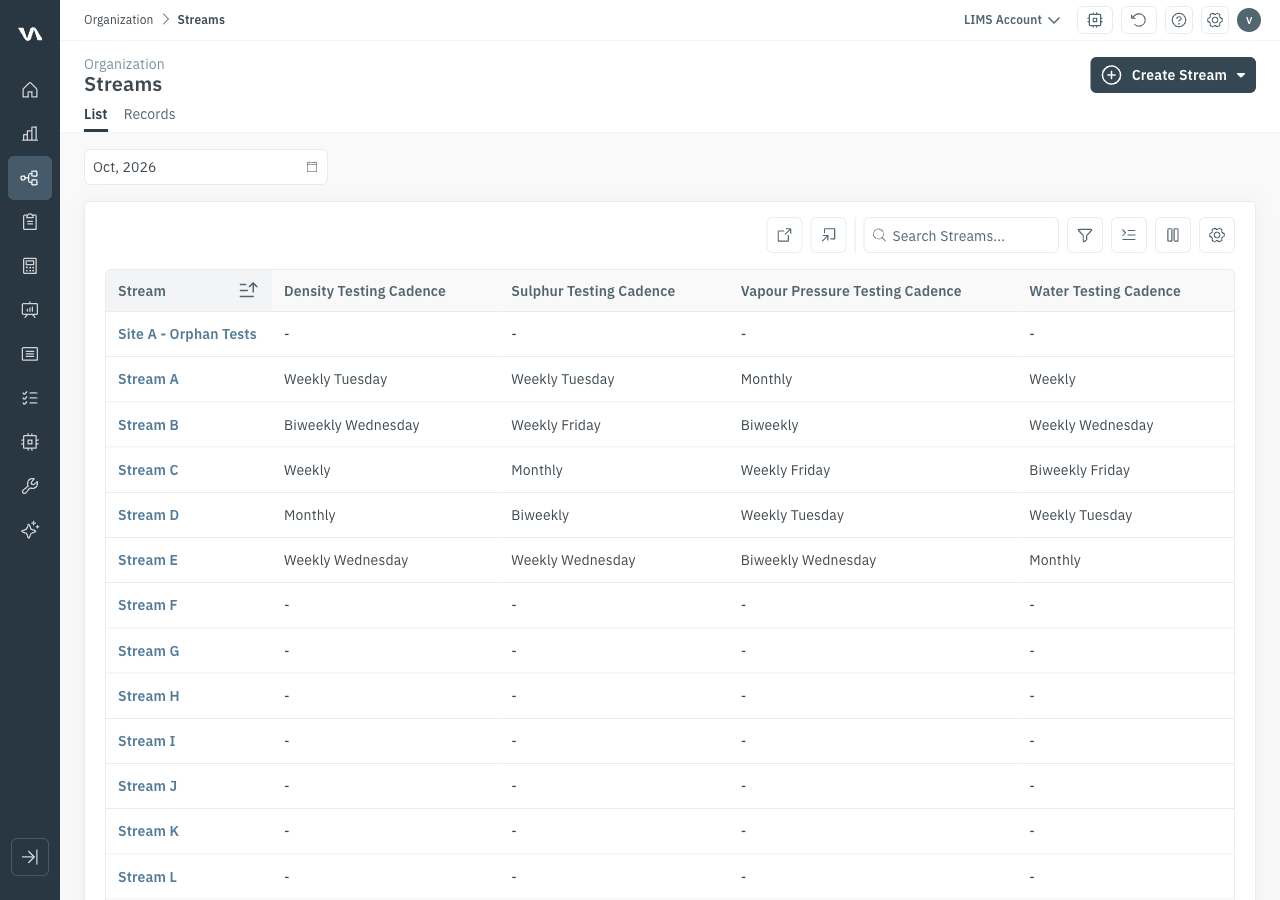
Notable stream attributes for LIMS include the sampling schedule (testing cadences), spec limits, an external stream identifier, and the static short code. Attribute names are configured for your account.
View and filter the stream list
- Go to Organization > Streams.
- Scroll sideways to see custom attributes.
- Open Filters. After the core fields, filters are listed alphabetically by custom attribute ID.
- To filter by site, collapse the stream filters, then open the Sites filters.
- Use the column controls to choose which columns are visible and in what order. The default order is alphabetical.


Edit a stream
You can edit a stream from its own page or inline from the stream list.
- Click a stream in the list to open its page, then click Edit. Or, on the stream list, click the row's edit (pencil) control.
- Change the name, sampling schedule, spec limits, or other custom attributes.
- Use the status control to set the stream Active or Inactive.
- Save.


Sampling schedule
A stream's sampling schedule is set by its testing cadence attributes (for example one cadence per test type, such as density, sulphur, or water). The cadences are visible as columns on the stream list. On any day that one or more tests are required, a Create Sample task is triggered for that stream.
To change the schedule, edit the stream's cadence attributes from the stream page or the stream list, as described above.

For how sampling tasks are completed or dismissed, see Sampling and Testing.
Spec limits
Spec limits (for example density, sulphur, or sediment upper and lower limits) are stored as stream custom attributes. Tests outside these limits are flagged as off spec and, when configured, trigger an off-spec notification. See Off-Spec Results.
To change a limit, edit the stream from the stream page or the stream list, as described above.

Period-based attributes (state management)
When you update custom attributes, you can set a start period and/or end period. The previous value remains in effect for earlier periods.
Example: if you update an external stream identifier effective August 2026, the previous value still applies to all periods before August 2026.
Use the period control on the stream page or on the stream list to view or export attributes for that period.

Change log
Open the Change Log tab on the stream to see historical changes to its metadata.

Bulk export
- Apply filters if you only want a subset of streams.
- Choose the period to export.
- Click Export. The file includes every stream in the filter and all of their custom attributes.
Attributes Start Date and Attributes End Date describe the period those attribute values are valid.
197001— valid for all previous periods999912— valid for all future periods
If a stream's start date is before the exported period, at least one attribute differed in an earlier period.

Bulk import
- Click Import.
- Download the import template from the web app.
-
Fill in the template and upload it to create or update streams.


Import rules
- Pink columns are mandatory. White columns are optional.
- Stream name cannot be changed through bulk import. The name is how the file is matched to existing streams. Other mandatory fields can be updated.
- Mandatory columns must be filled in even when you are not changing those values.
- To add a stream, use a name that does not already exist in Validere.
- You can set the period the updated values are valid. If you omit dates:
- Start date defaults to the current period
- End date defaults to indefinite (
999912) - If different attributes on the same stream need different start and end dates, put them on two separate rows.