
Dismissing Sampling Tasks
Overview
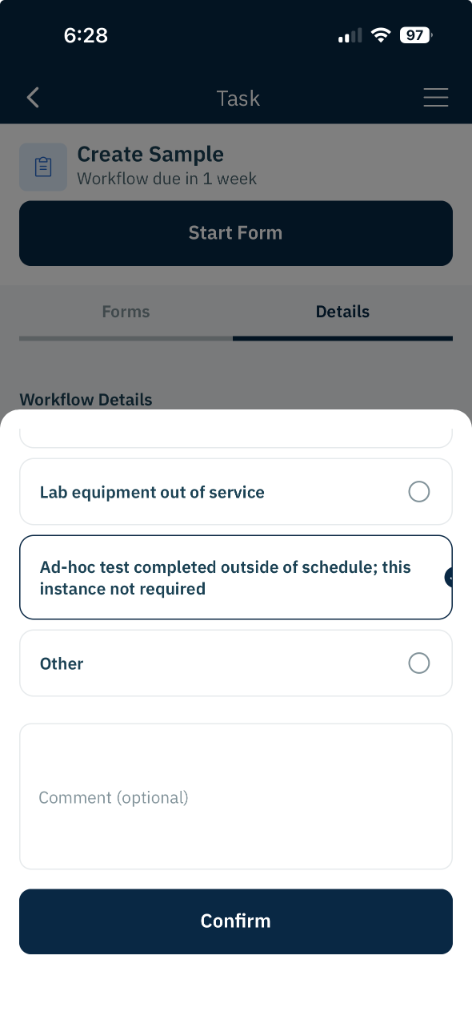
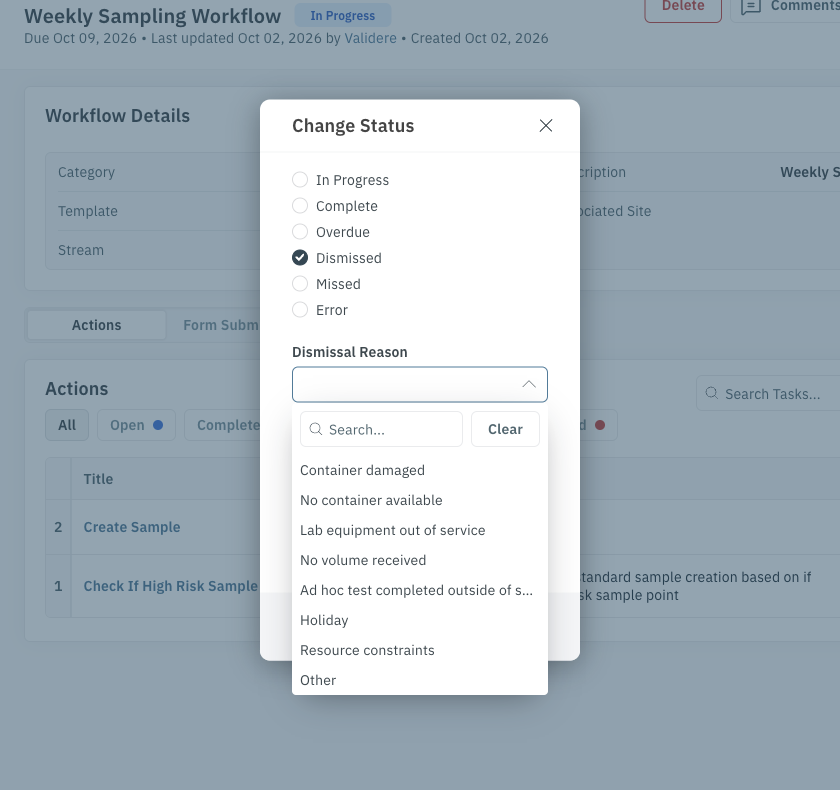
If a scheduled sample cannot be taken, dismiss the sampling task and choose a reason from the list of dismissal reasons set up for your account (for example Container damaged, No container available, Lab equipment out of service, Holiday, Resource constraints, or Other). You can add a comment for more detail.
Dismiss a task on mobile
- Open the sampling task from the task list.
- Open the Details tab.
- Tap Status.
- Choose Dismissed.
- Select a dismissal reason and, optionally, add a comment.
- Tap Confirm.
Dismiss a task on the web
- Go to Workflows > Tasks.
- Click the sampling task.
- Click Change Status.
- Choose Dismissed and select a Dismissal Reason.
- Optionally, add a comment.
- Save.

Dismissed tasks are listed in the daily sampling digest. See Daily Sampling Digest.